


Protocol for Using the Compac
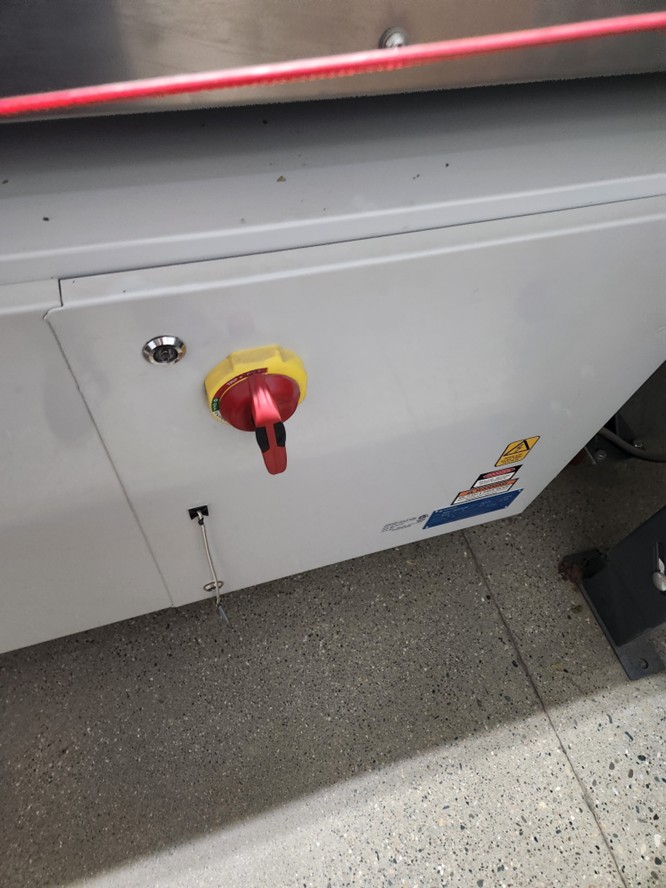
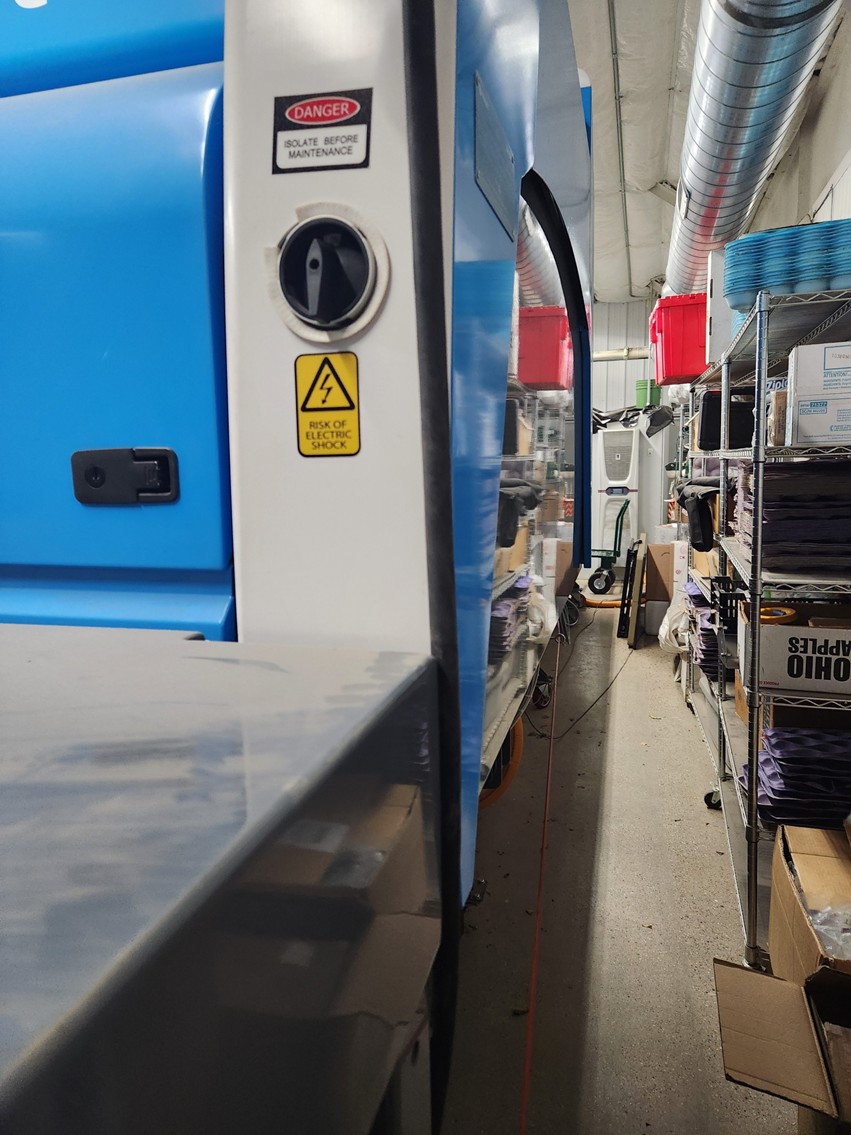
- Turn on the Compac line, there are two switches on the back (See Pictures 1 and 2)
- Electrical cabinet (red = on) and light cabinet (up = on)
- Go to the side screen connected to the machine and press start
- It may need a reset, press the reset button and wait 30 sec
- The machine will make a loud beep before starting
- If the machine won’t start, check all of the safety stops to make sure they are off
- There are 2 safety stops on either side of the input table
- There is also a big red button on the side screen and on the back of the machine by the on switches
- Allow the line to warm up for 20-30 minutes
- Go to PC4 (Sizer) then click Calibrate then tare
- Do a quick tare followed by a full tare
- The WAI should be below 0.5
- Turn on the computer (may already be on)
- Go to PC4 (Sizer) and click the sizer icon then create a new batch
- Click batch change – create a new batch – and change name to what you want, press save
- Make sure to write it on the physical log sheet too!!
- Go to PC2 (Spectrum) and turn on the cabinet lights
- It is on the task bar on the bottom of the screen
- Stay in PC2 and click Variety then click – Select Variety and choose the program you would like to use
- Select Variety again, select Grades, then Start Capture
- Test 10 fruit to make sure the machine is running well
- Fruit should rotate 360-420 degrees
- If rotation is slow or too fast – go to the side screen and change roller 2
- Do not change rollers 1 and 3 please
- Once you have set up the machine, stop Capture and move to Status, then all lanes AVG
- There are print outs that you can record bins, treatments, reps, and fruit counts on
- These sheets need to stay in the lab
- Allow for time between bins to reduce phantom fruit counts
- The machine will accidentally count extra fruit
- This can be resolved when the data is exported
- If you need a new batch – follow the steps above, making sure to record everything in the log
- To retrieve the data – plug a flash drive into the cabinet Sizer computer
- Then go to PC4 and select the frogger program
- Select the batches you want – hit ok – then start
- Three green bars will show up when it is done
- Move the files from the computer to the flash drive
- The files are stored in sizervisionlogfiles
- The name of the file will be batch#_merged.csv.
- Contact Emily Lavely for fixing the data in excel
- Turn off the cabinet lights (PC2), shut down the machine (the two switches), and turn off the computer
- Follow the cleaning protocol
 Print
Print Email
Email